Cheap laptops, you get exactly what you pay for.

Wednesday, December 7th, 2011
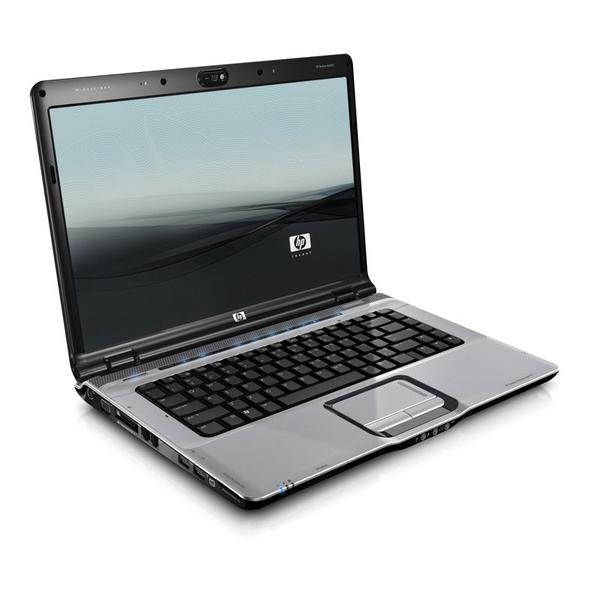
Hands down the worst laptop in the last 10 years.

DV 6000 born to fail

The prices are way down on laptops and the failure rate is rising just as fast. The cost cutting is evident, I have seen sturdier plastic used in KFC sporks. They flex, snap and shed their bits of plastic and no one blinks. “Well I did get it at Walmart for $198.00 on Black Friday”

Thats just great, and if your only use for your laptop is to surf the web, have at it. Here are the caveats, cheap laptops have cheap hard drives, if you live on the web and all your data is stored in a cloud by all means run fast and cheap and replace it every 14-16 months.

If you use outlook or quickbooks or have a huge iTunes collection and 137 gigs of pictures of your uncle Wally’s trip to Disney in 1993, then please back it all up!

Back it up now and in 2 places, send it to the ether using one of the online back up services and then put it on a local external hard drive and keep it where your laptop doesn’t live.

You have been warned…

Craigslist Buyer’s Beware of Spam!

Wednesday, September 21st, 2011

As a Computer repair specialist in the Bangor Maine area, I find myself in need of specific parts for PC’s and Mac’s and given the urgency that customers want their system’s back, I utilize every resource to get the right part ASAP. This brings me at times to Craigslist. I want to preface this by saying, not all craigslist deals are bogus, but I have found a disturbing trend of Spam generating specifically from replies I have made to craigslist. The ones I have seen are primarily sent from Russia and because I am responding to computer related sales, the Spam I am getting is for discount software. The way I was able to discern the Spam was coming from Craigslist specifically is actually the solution to the problem.

I started my online adventures in technology at a time when the internet for commercial use was in it’s infancy, so, yes right after Al Gore invented it! I was screaming across the internet at blazing speeds on my 14.4k dial up connection on my way too expensive 386/16 machine with 4 megabytes of ram, that was when someone actually published a hard copy yellow pages of the internet. As time passed I eventually opened up a yahoo email in 1997 and still have it to this day, it is now the repository of tens of thousands of Spam emails as over time I relegated this account as my garbage email address. Any online forum or inquiry that doesn’t have something to do with someone or some entity that I know or do business with gets replied to with my yahoo address.

This kind of tactic has kept my main email addresses on my own domain relatively spam free, not to say I never see an ad for a “genuine rolex” or queries on my need for Viagra or Cialis, which thankfully at 46 I am not in the market for. No I still get the occasional offer of ex Soviet block single ladies looking for Mr. Right in America, but in comparison my daily Spam intake is minimal. Out of haste one day I made the faux pas of replying to a Craigslist ad using my “good” email address. It took me a few days to make the connection that my new found techno based russian originated spam was a direct result of my craigslist responses, how I nailed it was to start another throw away account on my own domain. I quickly set up craigslist@oldersite.hampdencomputer.com and responded to a few ads, within 24 hours I had no replies to my inquires on items for sale, but started receiving  the russian based software selling spam 3-4 times a day.

My advise is to create your own “throw away” email specifically for correspondence with unknown entities. Save yourself the hassle of a spam filled inbox and possibly risking a virus attack. When you do make a connection with someone for a purchase here is what Craigslist recommends

  • Insist on a public meeting place like a cafe
  • Do not meet in a secluded place, or invite strangers into your home
  • Be especially careful when buying/selling high value items
  • Tell a friend or family member where you’re going
  • Take your cell phone along if you have one
  • Consider having a friend accompany you
  • Trust your instincts
Stay safe…
Spammed out? Check out Computer Doctor of Hampden website for help.


Computer Stress Syndrome, I feel your pain!

Wednesday, September 14th, 2011

Not that we need another label to identify something we already know, I ran across this little article and thought I would share with you. As a computer technician and business owner, I see the impact that technology has in regards to enhancing productivity as well as the frustration  when things “don’t work as they should”. The millennial generation which has grown up with computers have a much greater understanding and sometimes more patience when dealing with the benefits and shortcomings of technology. As the “baby boomer’s” and to a lesser extent “Gen Xer’s” are forced to embrace technology either by changing job descriptions or peer and family pressure I see the frustration when things go awry and are not as intuitive as they should be. I have battled with tech support, usually advocating for a warranty claim for my customers, and  can see how someone without a technical background and an extreme level of patience would hang up and throw in the towel when faced with technology failures. Is there a solution? No, but realizing we are all in the same boat is a start. Don’t forget to BACK UP  YOUR DATA!

<Slow boot times, continually crashing PC’s and annoying tech support people all add to our overwhelming sense of Computer Stress Syndrome in today’s digital society, according to a new study.

We are all digital-dependents now, whether we embrace tech or reject it like modern-day Luddites.

As such we find ourselves “increasingly overwhelmed and upset with technical glitches and problems in [our] daily lives,” says a new report called “Combating Computer Stress Syndrome.”

Computer Stress increases

The report was based on a survey of over 1000 American communications workers by a Customer Experience Board created by the Chief Marketing Officer Council.

It pointed towards “frustrating, complex computers and devices, technical failures, viral infections, and long waits to resolve support issues” as the primary reasons for computer related stress in workers.

The study concluded that: “The reality is that numerous, persistent problems are troubling most computer users, creating unnecessary anguish and anxiety as a result.

“Digitally dependent users are getting fed up and frustrated with the current state of computer related stress, and clearly looking for a better way to address and reduce it.

“Users face a continuous state of technical anxiety and challenge such as setting up new computer products, keeping up with software upgrades and migrating to new applications and operating systems, as well as dealing with malware infections, web threats, identity theft and more.”>


Isn’t it about time you backed up your data?

Thursday, August 25th, 2011

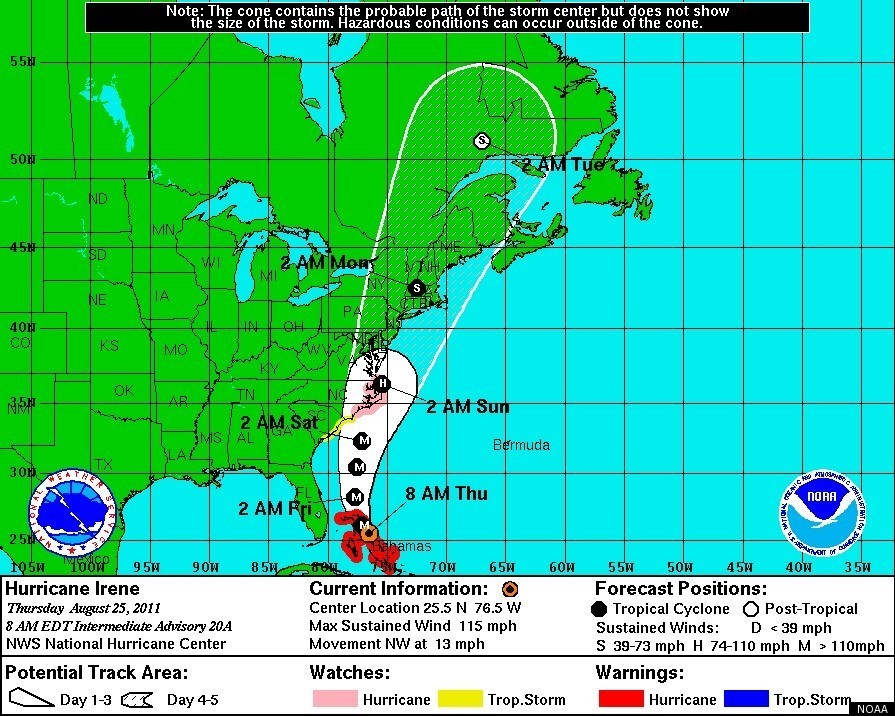
With the yet to be seen onslaught of hurricane Irene pending, as folks scramble for bottles of water and stashes of Butterfinger’s to ride out the storm, it might be time to consider a back up plan. While we may not be able to have a back up or do over for everything in life, isn’t it nice to know we can at least safeguard our digital memories and important data files. On a daily basis I see customers walk in with a dead laptop looking like their favorite dog just got hit by a car. After a bit of small talk and background information I get to the key question ” how is your data backed up”? Usually what follows is a long sigh…a look of despair and the inevitable answer, nothing is backed up.

With luck and some level of skill I can usually save the day and pull years of birthday parties, summer vacations and countless tax returns out of the firm grasp of a dying or infected hard drive. But the other option is the rebuilding of your hard drive in a clean room environment at the cost of hundreds to thousands of dollars, or even worse, that cherished picture of your crazy uncle who since passed away doing something incredibly stupid is gone for good.

So before the category three or tropical storm hits you here are some basics points to ponder.

  • Computer don’t like water.
  • If it gets wet leave it alone and bring it to someone who knows what they are doing, never mind the blow dryer  and the finger crossing. Don’t turn it on!
  • Have a back up of all your critical data.
  • Have another back up in a different location, either online or stored somewhere else.
  • Remember your hard drive will fail, not if , but when and as computers get cheaper, hard drives fail sooner. I see it daily.
  • If your system or primary backup system involves a raid array, make sure you have a back up system that doesn’t.

    Irene 20111 path of destruction.

    Hurricane Irene is coming to soak your data

Tied to your computer all day can be a real pain. Working out the kinks.

Friday, August 12th, 2011


Having recently been diagnosed with tendonitis in both arms and wrists, I am trying to implement some changes to make working more comfortable. Here is some information to help promote work comfort.

Those include your posture, the way you are using the mouse and keyboard, and monitor position.

Frequent inaccurate use of a mouse when working on the computer can lead to a condition called as repetitive strain injury or mouse arm.

Arm pain includes tingling, numbness, and weakness in the lower arm and hands.

These signs are due to overstressing of the tendons and nerves due to repetitive motion.

What cause arm pain?

Constant clicking with the computer mouse and abnormal hand position can cause damage to the tissues and in the long run which can lead to inflammation of the nerve fibers. The mouse click movements on its own can also trigger pain.

How to reduce arm pain?


  • Following ergonomic working methods can prevent RSI.
  • Restrict the use of mouse and use keyboard commands, since there are many program functions that can be executed with keyboard commands.
  • To perform the double click action there is the middle mouse button or the scroll wheel.
  • The size of the mouse should be appropriate and is suitable for your hand.
  • Use a wrist rest. They can guard against inflammation.
  • Padded rests for the ball of the hand can also reduce the strain on your arm.
  • Some other alternate input options like voice recognition or graphic tables can reduce arm pain.
  • Regularly perform stretching exercises, natural arm and hand movements and also take frequent work breaks help keep the arm musculature relaxed.
  • Use of forearm support can reduce supper body pain and prevent musculoskeletal disorders. This is a good solution for those who use computer for more than 20 hours per week.
  • Maintain an erect posture to reduce pain in your arm.
  • Adjust the arm support and work surface height so that forearms are parallel to the floor.
  • Proper positioning of your keyboard and mouse can minimize the pain.
  • Your chair height should be arranged in a fashion so that your thighs are parallel to the floor.
  • When you are sitting and working in front of the computer, don’t twist your body.
  • Keep your back at a right angle when your arm rest is at the right height.

One of the best things I have found is to get up and move. I have the benefit and curse of being self employed, so theoretically I can get up and move whenever I want. Sounds good doesn’t it? Well I tend to get engrossed in what I am doing and the time flies by. So I am now setting a timer on my computer to go off every 45 minutes to remind me it’s time to take a break, walk around and stretch.

I was happy to hear that I am not yet diagnosed with arthritis, come on I am too young for that, right? But this chronic pain really stinks, I thought I could rehab myself by cranking open every canal lock in the midlands of England, while fun and great exercise, I didn’t come home with forearms like Popeye or any less pain in my arms. I am hopeful that using some of these tips will help, voice recoognition is not the easiset way to get around a computer…yet.


Kevin

Stuck with Vista? Might be time to try Windows 7.

Wednesday, August 10th, 2011

Microsoft seems to hit the mark with operating systems about 50% of the time. Going back to when I first installed windows, Windows 3.1 worked remarkably well and having just repaired an old 486/dx33 computer running 3.11 last week , it was amazingly fast. I was lucky enough to attend one of the Microsoft launch conferences for Windows 95, while it was the biggest GUI leap to date, it was not without it’s bugs and performance issues. By the time the Windows 98 Second Edition came along the operating system was a stable and well supported platform.

The next release for consumers was Windows Millennium, this version was also very short lived and plagued by driver issues and continual freeze ups. Microsoft hit it out of the park with Windows XP, by utilizing the core file system of Windows NT the NTFS file system the OS was more stable and user friendly. XP is like an old friend, still deployed in millions of computers world wide the OS will no longer be supported in 2014, once that happens it is pretty much useless. Keep that in the back of your mind if you are still clinging to XP.

Microsoft’s next faux paus was Windows Vista, responding to the increasing market share of Apple OSX, Microsoft tried to incorporate the “eye candy” of OSX and a layer of security by adding the user access control layer, all those wondefull little pop ups that ask you if you want a program to do something. What Vista brought along with it was a huge jump in system requirments, both processor and ram. If you are running a Vista system with anything less that 2 GB of ram you are really dragging your heals. Along with the elegant Aero interface  Vista brought along extened start up times, unforeseen freeze ups, failed critical system updates which can render the system useless, the “black screen of death” is much more lethal than the XP “BSOD”.

So my theory is that everyone who purchased a computer with Windows Vista was no more than a beta tester for Windows 7. As we ponied up the cash to buy new laptops with Vista, we logged complaint after complaint about it’s short comings and Microsoft had all the feedback it could ever want to put together the next version, which really could have been Vista SP4,

the one that actually works. Instead of fixing it’s Vista mess Microsoft sold us Windows 7 and we seem to finally be back to a stable operating system for the moment.

Good news is that if you purchased a laptop with Vista, it should run better with Windows 7. Hardware wise the operating system manages resources better so it can breathe life into your relatively new Vista machine.

To maximize the upgrade, I recommend doing a clean installation, this means backing up your data, formatting the drive, installing the operating system, applying updates, reinstall your programs and transfer your data back. If you would like to rid yourself of the Vistas nightmare, Computer Doctor offers an upgrade service, the process can usually be completed within 24 hours. We can also evaluate your current hardware and make recommendations if you are ready to upgrade.

Avoiding data loss and computer crashes. US-CERT

Wednesday, July 13th, 2011

Take a proactive approach to protecting your data. Here are some great tips that can save frustration and potential loss of data and productivity.

The links will take you to the US-Computer Emergency Readiness Team website, an ounce of prevention is worth a pound of cure!

Safeguarding Your Data

When there are multiple people using your computer and/or you store sensitive personal and work-related data on your computer, it is especially important to take extra security precautions.


Why isn’t “more” better?

Maybe there is an extra software program included with a program you bought. Or perhaps you found a free download online. You may be tempted to install the programs just because you can, or because you think you might use them later. However, even if the source and the software are legitimate, there may be hidden risks. And if other people use your computer, there are additional risks.

These risks become especially important if you use your computer to manage your personal finances (banking, taxes, online bill payment, etc.), store sensitive personal data, or perform work-related activities away from the office. However, there are steps you can take to protect yourself.

How can you protect both your personal and work-related data?

    • Use and maintain anti-virus software and a firewall – Protect yourself against viruses and Trojan horses that may steal or modify the data on your own computer and leave you vulnerable by using anti-virus software and a firewall (see Understanding Anti-Virus Software and Understanding Firewalls for more information). Make sure to keep your virus definitions up to date.


    • Regularly scan your computer for spyware – Spyware or adware hidden in software programs may affect the performance of your computer and give attackers access to your data. Use a legitimate anti-spyware program to scan your computer and remove any of these files (see Recognizing and Avoiding Spyware for more information). Many anti-virus products have incorporated spyware detection.


    • Keep software up to date – Install software patches so that attackers cannot take advantage of known problems or vulnerabilities (see Understanding Patches for more information). Many operating systems offer automatic updates. If this option is available, you should turn it on.


    • Evaluate your software’s settings – The default settings of most software enable all available functionality. However, attackers may be able to take advantage of this functionality to access your computer. It is especially important to check the settings for software that connects to the internet (browsers, email clients, etc.). Apply the highest level of security available that still gives you the functionality you need.


    • Avoid unused software programs – Do not clutter your computer with unnecessary software programs. If you have programs on your computer that you do not use, consider uninstalling them. In addition to consuming system resources, these programs may contain vulnerabilities that, if not patched, may allow an attacker to access your computer.


    • Consider creating separate user accounts – If there are other people using your computer, you may be worried that someone else may accidentally access, modify, and/or delete your files. Most operating systems (including Windows XP and Vista, Mac OS X, and Linux) give you the option of creating a different user account for each user, and you can set the amount of access and privileges for each account. You may also choose to have separate accounts for your work and personal purposes. While this approach will not completely isolate each area, it does offer some additional protection. However, it will not protect your computer against vulnerabilities that give an attacker administrative privileges. Ideally, you will have separate computers for work and personal use; this will offer a different type of protection.


    • Establish guidelines for computer use – If there are multiple people using your computer, especially children, make sure they understand how to use the computer and internet safely. Setting boundaries and guidelines will help to protect your data (see Keeping Children Safe Online for more information).


    • Use passwords and encrypt sensitive files – Passwords and other security features add layers of protection if used appropriately (see Choosing and Protecting Passwords and Supplementing Passwords for more information). By encrypting files, you ensure that unauthorized people can’t view data even if they can physically access it. You may also want to consider options for full disk encryption, which prevents a thief from even starting your laptop without a passphrase. When you use encryption, it is important to remember your passwords and passphrases; if you forget or lose them, you may lose your data.


    • Follow corporate policies for handling and storing work-related information – If you use your computer for work-related purposes, make sure to follow any corporate policies for handling and storing the information. These policies were likely established to protect proprietary information and customer data, as well as to protect you and the company from liability. Even if it is not explicitly stated in your corporate policy, you should avoid allowing other people, including family members, to use a computer that contains corporate data.


    • Dispose of sensitive information properly – Simply deleting a file does not completely erase it. To ensure that an attacker cannot access these files, make sure that you adequately erase sensitive files (see Effectively Erasing Filesfor more information).


  • Follow good security habits – Review other security tips for ways to protect yourself and your data.

iPad, not for everyone, but for many it is just what they want and more.

Monday, July 11th, 2011

As a technology tech, I receive many inquires about every conceivable gadget from folks with all levels of technical expertise. I am an iPad owner and a Mac user, but I also have my share of PC’s and android devices, so I try to give recommendations on experience and not solely on brand preference.

The iPad is a great device, the biggest flaws I have found is the lack of flash and limited printer support. Where apple shines is the GUI or graphical user interface. It is polished and well thought out and rather intuitive. The touch experience is implemented with precision and with each new ios release becomes more functional and feels  very natural to use.

The touch interface is in my opinion a major leap forward in how we interact with our data. We will see in the next decade a change in how we input our information. Speech recognition and touch will continue to grow, not that the mouse and keyboard will disappear any time soon, but as we develop a level of comfort with the new interfaces, more advances will lead us to a new user experience.

Will we find ourselves screaming at our future devices and using gestures that may not be acceptable in polite company, you bet. I am sure we will be looking back in 10 years at the iPad with as much nostalgia as we remember the palm pilot of 10 years ago. You do remember the palm pilot?

Holding on to XP till the last gasp?

Wednesday, July 6th, 2011

The end is approaching for Windows XP… in 2014. The already decade-old operating system is still the main base for much of the world’s PCs, despite Microsoft’s efforts to hold those users away from Internet Explorer 9 (though the latest Firefox and Chrome work just fine) and the other latest Microsoft software.

In its latest push, Microsoft has made and published “Windows XP End of Support Countdown Gadget” – essentially a desktop gadget with a countdown clock until the classic OS is no longer supported.

Microsoft gives it the following overview: “Looking to get off Windows XP? Use this handy gadget to count down the number of days until Windows XP End of Support (EOS) in 2014.”

The desktop gadget, however, is only supported by Windows Vista and Windows 7, which makes it somewhat puzzling as such users have obviously eradicated Windows XP from that particular system.

Sure XP will work after April 8th 2014, but with out any security updates, it will be open season for malicious code writers. Not that it isn’t already, but without the patches from Microsoft any XP machine connected to the internet will be a huge target.

So if you were lucky enough to skip the Vista debacle, it might be time to consider getting familiar with Windows 7…The clock is ticking.

Running out of space?

Thursday, June 23rd, 2011

Here is something to think about, generally as long as the computer is working, we don’t give it much thought. When a virus strikes many jump into action as their data may not be backed up and they run the risk of losing pictures, music, video, documents, spreadsheets, tax info Quickbooks, you get the idea. Something else to consider is disk space. Modern computers generally come with much larger hard drives then those we say even 5 or 6 years ago. As the computer becomes the catch all for our memories and in some cases business life we need to keep an eye on how much storage we have. Windows itself, takes more and more space with each update, compound that with the files that may get stored from emails, programs you install and may never use space disappears rapidly. If you have large video/music collection that is stored on your main hard drive and/or have an older XP machine that may only have a 40-80 GB hard drive you run the risk of running out of space.

What can happen? On older machines with limited physical memory (RAM) as you open more programs windows needs more resources to keep things going and it tries to use hard disk space (swap file) to execute your commands. When this is limited windows grinds to halt, some folks will delete a few files here and there to try and keep things going, what happens is the drive becomes more and more fragmented, slowing you down even further. I recently ran into a situation that required extensive data recovery due to file system corruption from running out of space.

What are some of your options?

  • When purchasing a new computer go for a big hard drive! Setting up a second partition for data files can simplify things for data management and if you need to recover files.
  • For desktop computers there is usually space and accommodations for multiple hard drives.  Hard drives can be “cloned” to the larger drive to increase space or transfer the data files to the new hard drive.
  • Laptops generally have space for one drive, again we can clone the drive to a larger one, or set up an external drive or network storage drive to store the files.
  • Cloud storage is an inexpensive way to back up or store data files.

A good rule of thumb is when your free disk space is less than 30% of the total drive it is time to start looking into options.


Need help? Call, email or check our website, we have a live chat feature and can help find a solution that works for you.